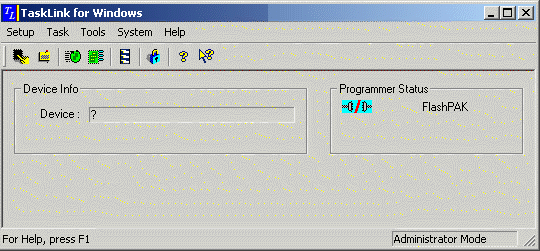
There are many different screens that you can see within TaskLink, and there are many different menus that you can choose from also.
TaskLink Main window.
FlashPAK is the selected programmer in this example.
The Main Screen displays the following groups of information:
Displays the name of the currently selected device. If no device is selected, "?" is displayed.
Displays the connection status to the programmer and which programmer is used.
The TaskLink Toolbar contains shortcuts to many of the most often-used menu items. Although the toolbar changes depending on which programmer you have configured, an example of the toolbar is shown below.

Each icon in the toolbar corresponds to a TaskLink menu item. To quickly select the menu item, click the toolbar icon.
 - Select a device from the list of supported devices.
 - View the footnotes for the selected device.
 - Run a Task or Kit.
 - Manage Tasks and Kits.
 - (FlashPAK only) Manage jobs.
 - Set the TaskLink security level and add users.
 -(This icon depends on version) Open online Help. (If no icon, click the Help Menu item in the menu bar.)
===